
In DEMO-OPPNET, we use DoDWAN to ensure communication in an opportunistic network. DoDWAN provides a network API for programming opportunistic applications that follow one of the two following collaboration paradigms:
Content-based publish-subscribe, for applications that rely on message passing. This is the native API of DoDWAN. Published messages are tagged with descriptors (lists of key/value pairs) and disseminated in the network. One can subscribe to some messages, by specifiying the patterns of the messages one is interested in. Reception automatically occurs according to the contacts of peers in the opportunistic network. The API also allows a peer to relay messages without delivering them to the application, allowing some form of controlled epidemics.
Conflict-Free-Replicated Data Types (CRDTs), for application easier to program by sharing data structures. In this case, we use a DoDWAN plugin that implements a provider for the synchronization of Yjs CRDTs. Each replica of a CRDT can be modified independently, thus the replicas may temporarily diverge. A synchronization algorithm runs in the background so that the replicas eventually converge to the same state.
The DoDWAN network API allows the development of Web apps that can be accessed from
any web browser. We propose three such applications in DEMO-OPPNET: Quillopp,
Cartopp and Webopp. They can all be launched from the Webapp Manager of the
Webadmin application accessible at URL
http://localhost:8080.
Additionally, it is possible to connect a standard mailer application to DoDWAN, so as to benefit from a usual mail service in an opportunictic network.
Quillopp is a simple and intuitive collaborative editor that relies on the Quill editor associated with the Yjs CRDT implementation. It handles a collection of documents, each document being shared among users.
You can create a new document, or join the collaborative editing of a document, by specifying the name (identifier) of the document, which serves as a key to access the document. There is no discoverable directory of documents. It is assumed that contributors know the identifier of the document they want to share.
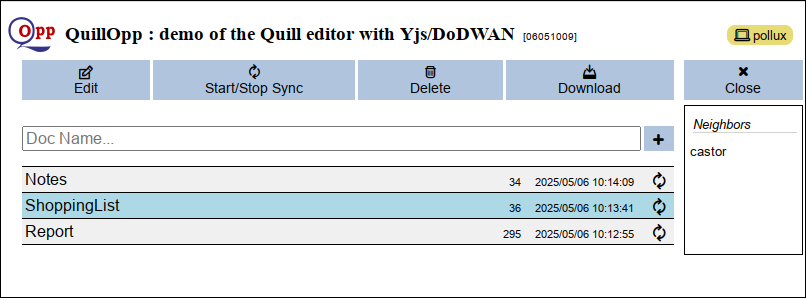
To add/join a document, simply type a document name in the input line and click on the plus sign. It will be then added to the list of handled documents. For each document in the list, you can see it current size (in characters), its creation date and the synchronization flag (active by default). After having selected one of the documents in the list, you can perform an action on it with the buttons of the top bar:
Edit switches to the editing window for this document.
Start/Stop Sync toggles the synchronization flag (the document list item reflects the choice you make). If deactivated, no synchronization will occur between your replica and other's replicas.
Delete delete your document replica. The document is removed from the list and from your browser's storage. However, this has no impact on other replicas. So that you will retreive the document, as soon as you re-join it and you are in contact with other replicas.
Download allows you to save the content of the document in a file (without formatting and images)
The 'Close' button exits the application.
The editing window gives access to usual simple editing commands and shows the shared document. The displayed content may spontaneously vary as synchronizations with other replicas occur. The commands allow you to format a selected zone (as normal text, one of two heading types, bold, italic or underscored), to insert a bitmap image (from a file) and to insert a code area.
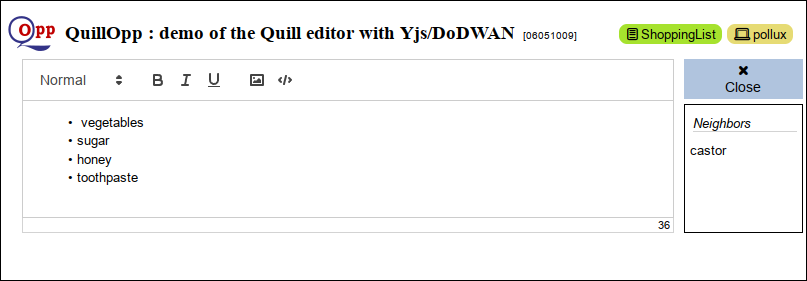
The 'Close' button returns to the document managing window.
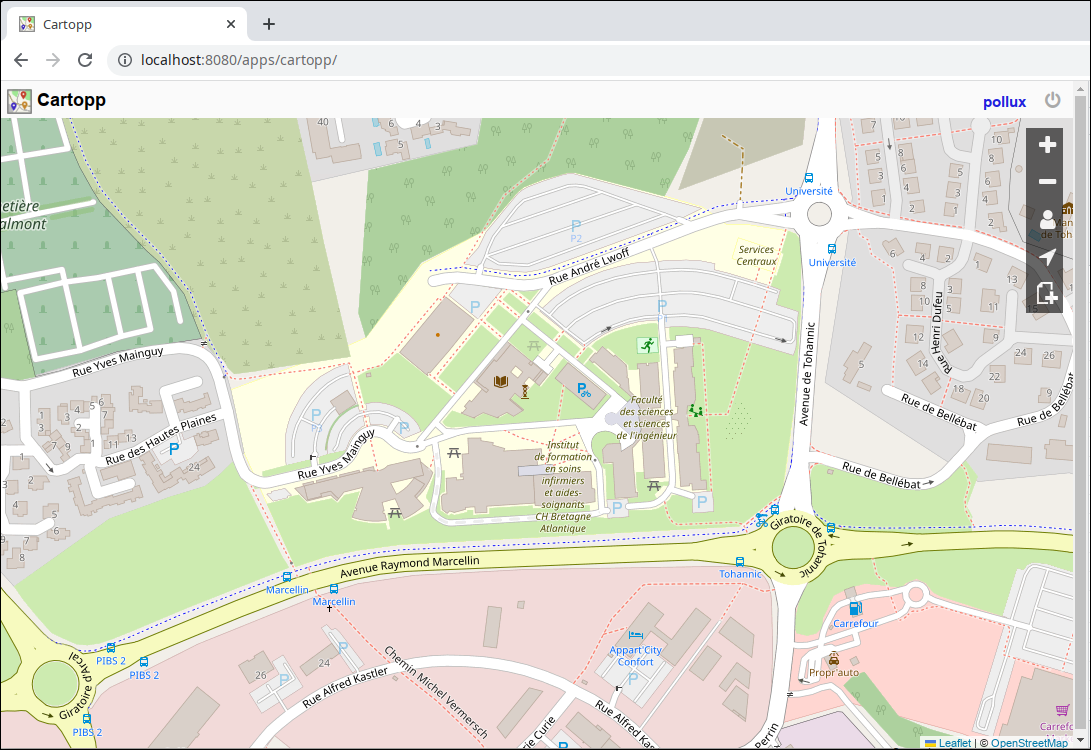
Cartopp is a collaborative map on which you can add POIs (Points of Interest) depicted by colored icons. POIs cand be moved and associated with short texts.
The zoomable map is embedded in the application (for the demo, the map covers the neighborhood of the IRISA research laboratory in Vannes, France). A tenth of icons are available. A side bar can be opened to see the other peers (and their associated colors) to better interpret their contributions on the map.
A control bar is present on the right part of the map. It allows the user to
Click on the new document icon to add a POI. That opens the top tool bar where you can select an icon and optionally type a short text. Click on the 'Add POI' button to valid you choice.
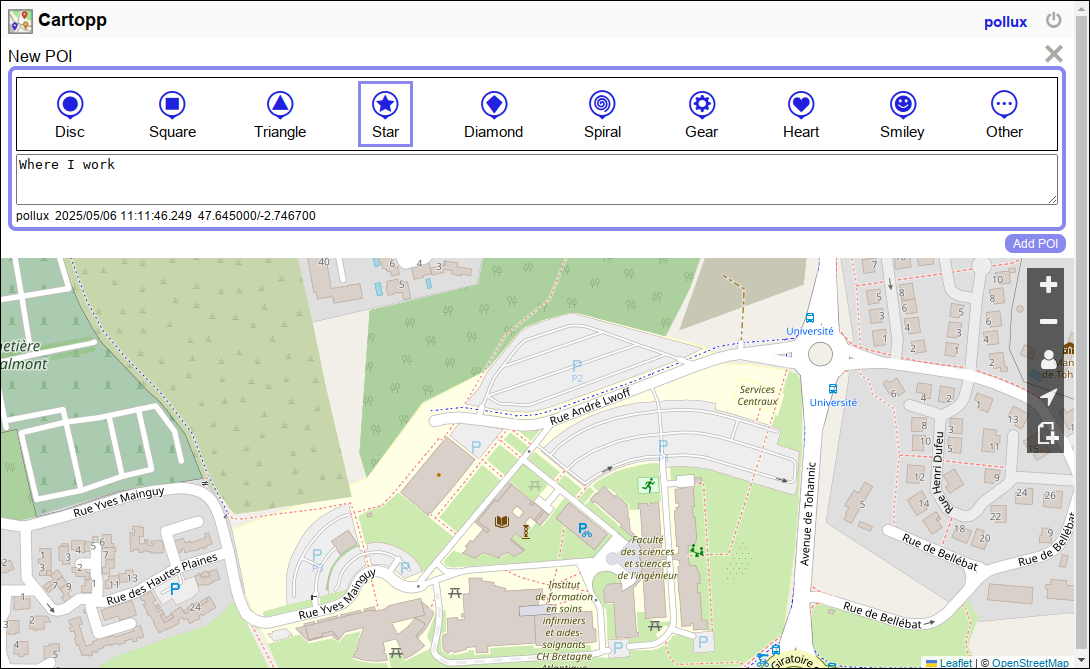
The chosen icon will then appear on the center of the visible map. You can then move the icon (drag and drop) to its desired position on the map.
When other contributors add POIs on their side, these POI will eventually appear on the screen with different colors, according to their author (yours are always in blue). Open the Peers side bar to see the different known peers and their associated colors. In this side bar, known peers that are not in contact are grayed out.
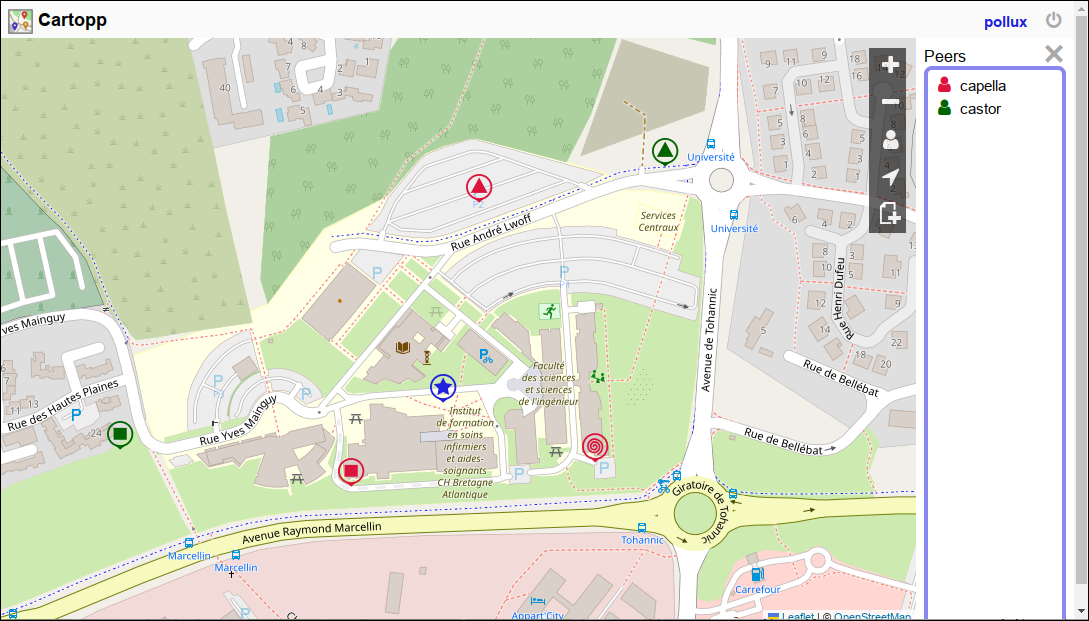
You can double-click on a POI icon to see details on it, in particular, the associated text. The opened top tool bar also allows you to modify the POI, by changing its icon or text. The original author will however be kept. Validate you modifications with the 'Modify POI' button. You can also choose to delete the POI (button 'Delete POI'). Note that this deletion can not be reversed.
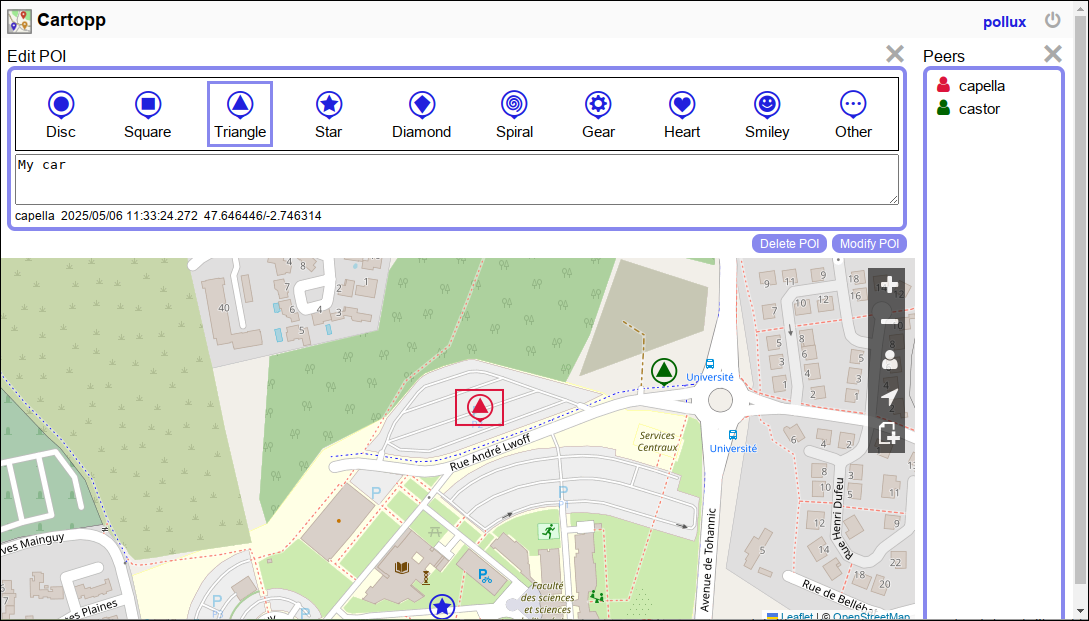
You can also move any POI icon on the map. For this demo, we have chosen not to impose any restrictions on the modifications on the POIs created by other contributors, although this may be desirable on many similar realistic applications.
Webopp is an application that proposes a GUI to the main service offered by DoDWAN: content-based publication-subscription for exchanging text messages and files in an opportunistic network. It a good way to get familiar with the possibilities offered by the DoDWAN middleware.
The screen presents a 'Peers' section where the current neighbor peers are listed. The three other collapsible sections give implementation elements for content-based publication-subscription.
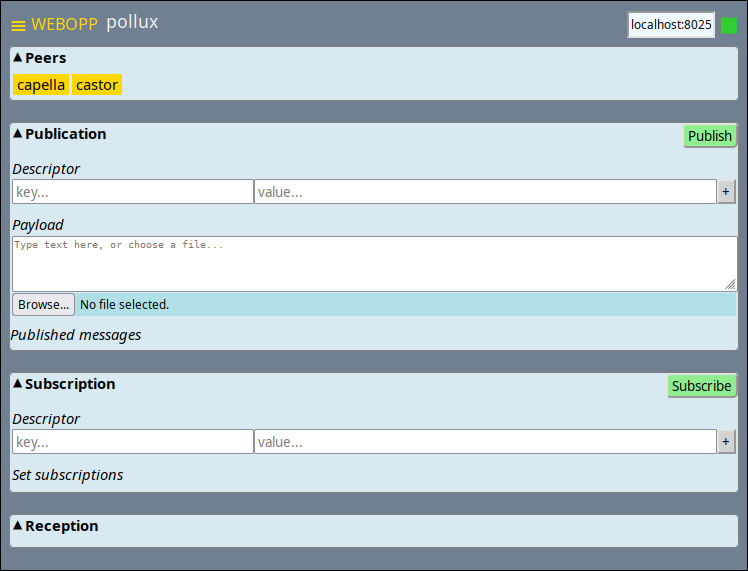
A message propagated in the opportunistic network by DoDWAN is composed of a descriptor and a paylaod. Specifying a descriptor is a way to 'tag' the message to be sent. It consists in a series of couples (key, value). You can add these couples one by one in the input line entitled Descriptor. Enter a string for the key and, optionnally, for the value, before clicking on the plus sign on the right. A couple present in a descriptor (in a yellow line) can be removed at any time (minus sign button on the right)
Once you have build your descriptor, you can set the payload of the message. It is either a string that you enter in the 'Payload' input area or a local file that you upload by clicking on the 'Browse' button.
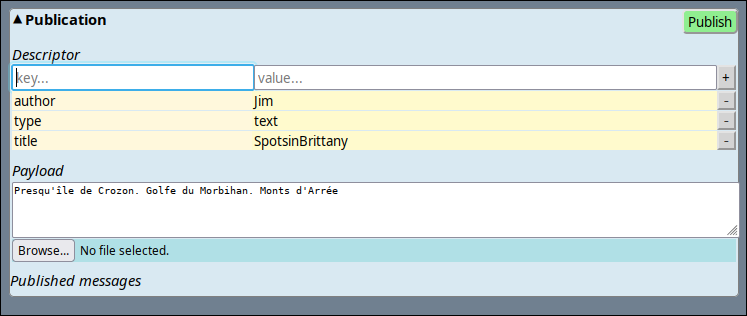
Your message is then ready to be published (click on the green 'Publish' button). The published messages are listed at the bottom of the section.
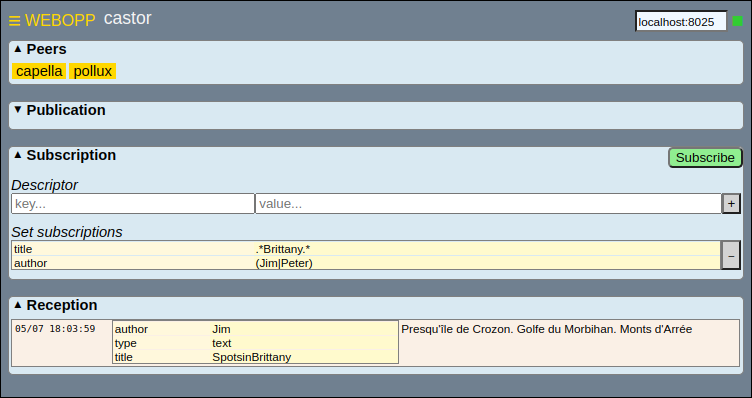
In order to receive messages you are interested in, you must first make a subscription. For this, you fill a descriptor as in the 'Publication' section, but in this case, the descriptor is a pattern descriptor, in which values can be Java regular expressions. DoDWAN will receive only the messages that match this pattern.
The following illustration shows a subscription set on device castor (with a
two-line pattern descriptor) that matched the descriptor of the message
published by pollux. Thus the message has actually been received and appears
in the 'Reception' section.
Besides the three web applications, DEMO-OPPNET proposes a mail application. The objective is to allows a standard client mail application to be used, with a specific configuration, adapted to an opportunistic network.
In a traditional Internet context, the mail service is operated by a so called mail provider that hosts mailboxes (i.e. store messages) and allows accesses to a SMTP server (for sending messages) and a POP or IMAP server (for retrieving messages), after the creation of an account.
In DEMO-OPPNET, there is no operator. Messages are handled by DoDWAN, and disseminated through the opportunistic network. From the point of view of the user, though, there is no major difference with a traditional usage. A SMTP and a POP3 server are automatically deployed when launching the demo, and a pre-defined mail account is already created, with the peer name as the login and a fake domain 'demo.oppnet'.
The following parameters should be entered when configuring your client mail application (Thunderbird, Evolution, KMail, Claws-Mail...):
email address : login@demo.oppnet
For incoming messages
Server type: POP3
Server name: the name of the host running the demo (usually localhost, without domain name)
Port: 5679
Connection security: None
Authentication method: Password (in plain text)
Login : your DoDWAN node ID (i.e. the peer name as it appears in the status tab of Webadmin)
Password: demo
For outgoing messages
Server type: SMTP
Server name: the name of the host running the demo (usually localhost, without domain name)
Port: 5678
Connection security: None
Authentication method: None
A mailing list service is also available, inspired by the SYMPA service. You
can subscribe to a mailing list of your choice by sending a message to
sympa@lists.oppnet with a body containing SUBSCRIBE listname@lists.oppnet where
listname is the name of the mailing list. Note that there is no centralized
creation of mailing lists. The different users are supposed to have previously
agreed on a list name.
You may also send a mail to sympa@lists.oppnet with body UNSUBSCRIBE
listname@lists.oppnet or STATUS to unsubscribe from a mailing list or for
obtaining the list of your subscriptions.
Note that the mailboxes are stored in the DEMO-OPPNET installation directory. So all the content of the mailboxes will disappear when DEMO-OPPNET is uninstalled.