
When you deploy DEMO-OPPNET on a laptop, the demo-oppnet systemd service runs in the background and you can launch the Webadmin client and other web apps in your browser (URL starting with http://localhost:8080/).
It is sometimes convenient to install DEMO-OPPNET on a small devices, deprived of screen (for example a Rapsberry Pi). In this case, web apps have to run on an external machine which can support a web browser, and a communication channel must be established between the headless device running DEMO-OPPNET and the devices running the browser.
We have developed a gateway that enables this type of communication, between DEMO-OPPNET and an Android device via Bluetooth. This gateway establishes a Bluetooth tunnel between the two sides of the gateway, tunnel inside which multiplexed TCP transmissions can occur.
On the DEMO-OPPNET side, you have to make sure that the demo has been launched with the Bluetooth option. On the android device, you have to install and run a dedicated app.
You can download the the Android Bluetooth Android App here: bluetooth-gateway.apk. Then install it on your smartphone (or tablet).
In order to use an external Android GUI, you have to install DEMO-OPPNET with
the bluetooth gateway (option -bt). If the demo had already been installed,
it will automatically be uninstalled first. See the Installer
manual for details.
sudo sh /path/to/demo_oppnet.run -- -bt
This will install and start the demo, including the Bluetooth gateway.
In order to use the Android Bluetooth gateway, you have first to pair your smartphone with the host running DEMO-OPPNET. The exact procedure depends on the Android version and on your smartphone's vendor user interface (Samsung One UI, Xiaomi MIUI...). After having activated Bluetooth, you should be able to select the (Bluetooth controller of the) host running DEMO-OPPNET. This will open a dialog box prompting a random pairing code. You can ignore this code and confirm the pairing.
Note that the advertised name you should select reflects the new name you have chosen if you have renamed the DoDWAN Node ID in the Webadmin app (tab 'Status').
Be careful, the Bluetooth controller is advertized only during 3 minutes after DEMO-OPPNET has been launched. Restart the demo if necessary before trying to pair your smartphone.
When opening the Android Bluetooth gateway application, you will see an empty screen.
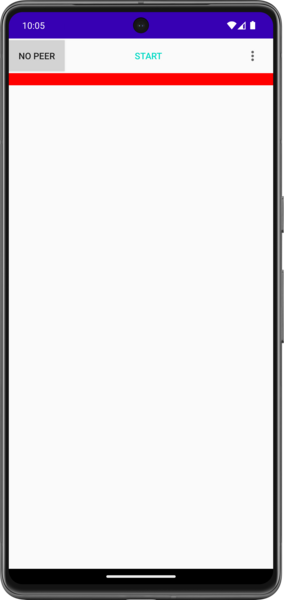
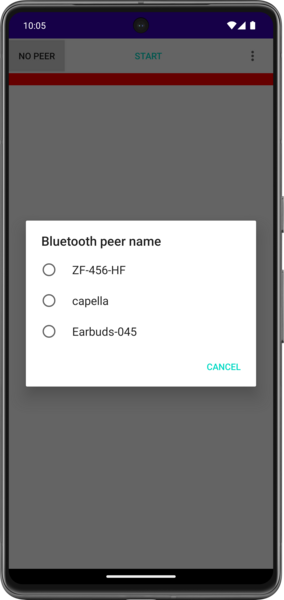
You first need to select the Bluetooth controller the application will connect to. Click on the peer name in grey (here 'No peer') to display the list of paired devices. Choose the name of the host running DEMO-OPPNET (here capella).
You can now see the selected peer name. You can press on the 'START' button to establish the Bluetooth tunnel. An info message (green zone on the top) should appear after a few seconds to confirm the creation of the tunnel.
This tunnel is automatically re-established if Bluetooth is deactivated and reactivated later.
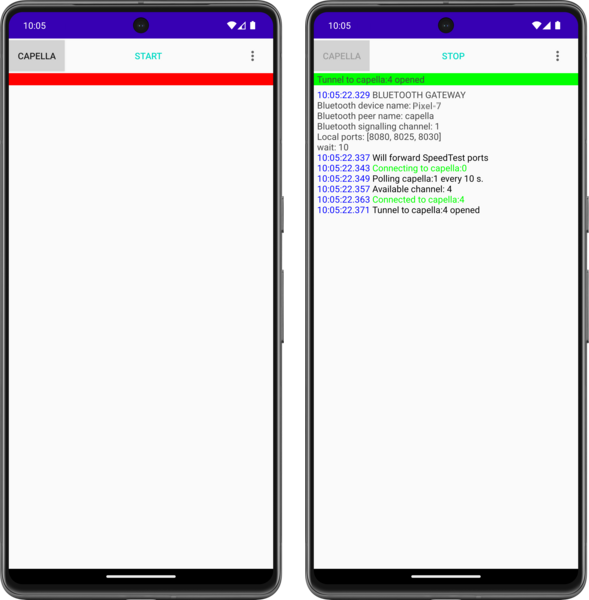
Once the Bluetooth tunnel is set, you can use the usual applications of the
demo (Web apps, Mail) connecting them the Android side of the tunnel, that is,
localhost. Try for example to open the Webadmin application in the web browser
of the smartphone, at URL http://localhost:8080.